Header
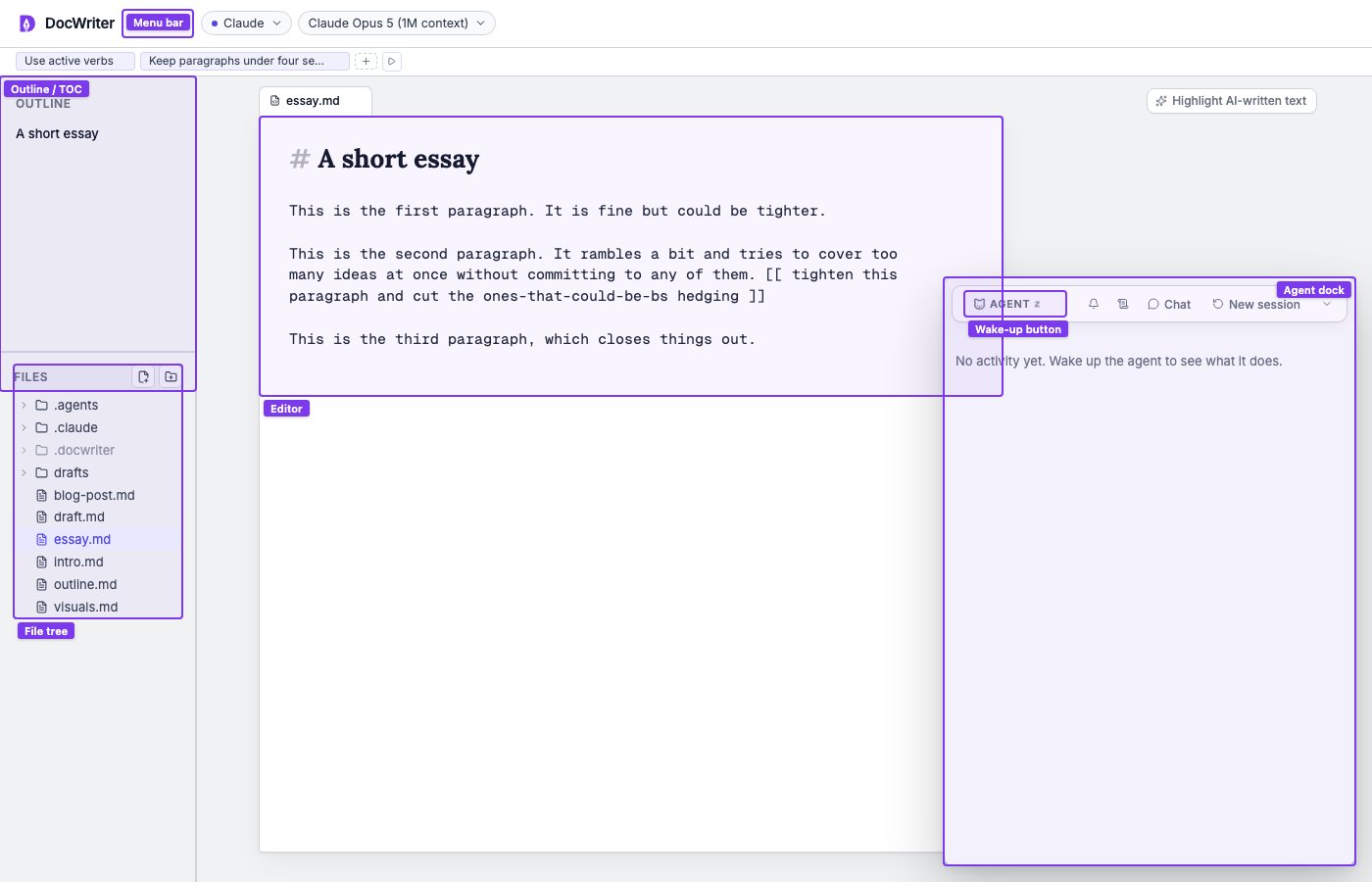
You will find Settings and the provider and model pills in the header. For setup instructions, read Connect a provider.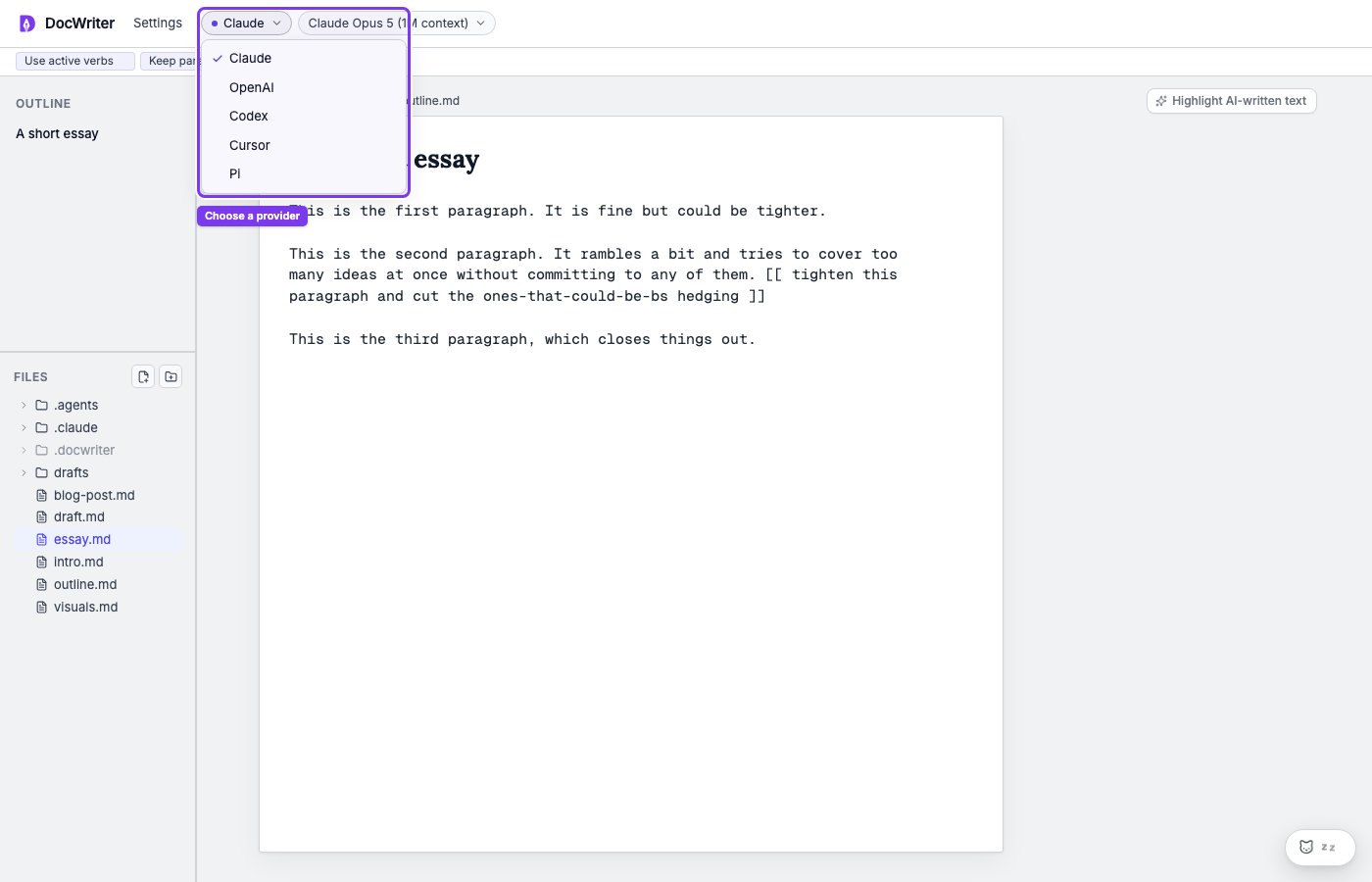
Rules toolbar
Your saved writing rules appear above the workspace. For instructions on adding and applying rules, read Writing rules.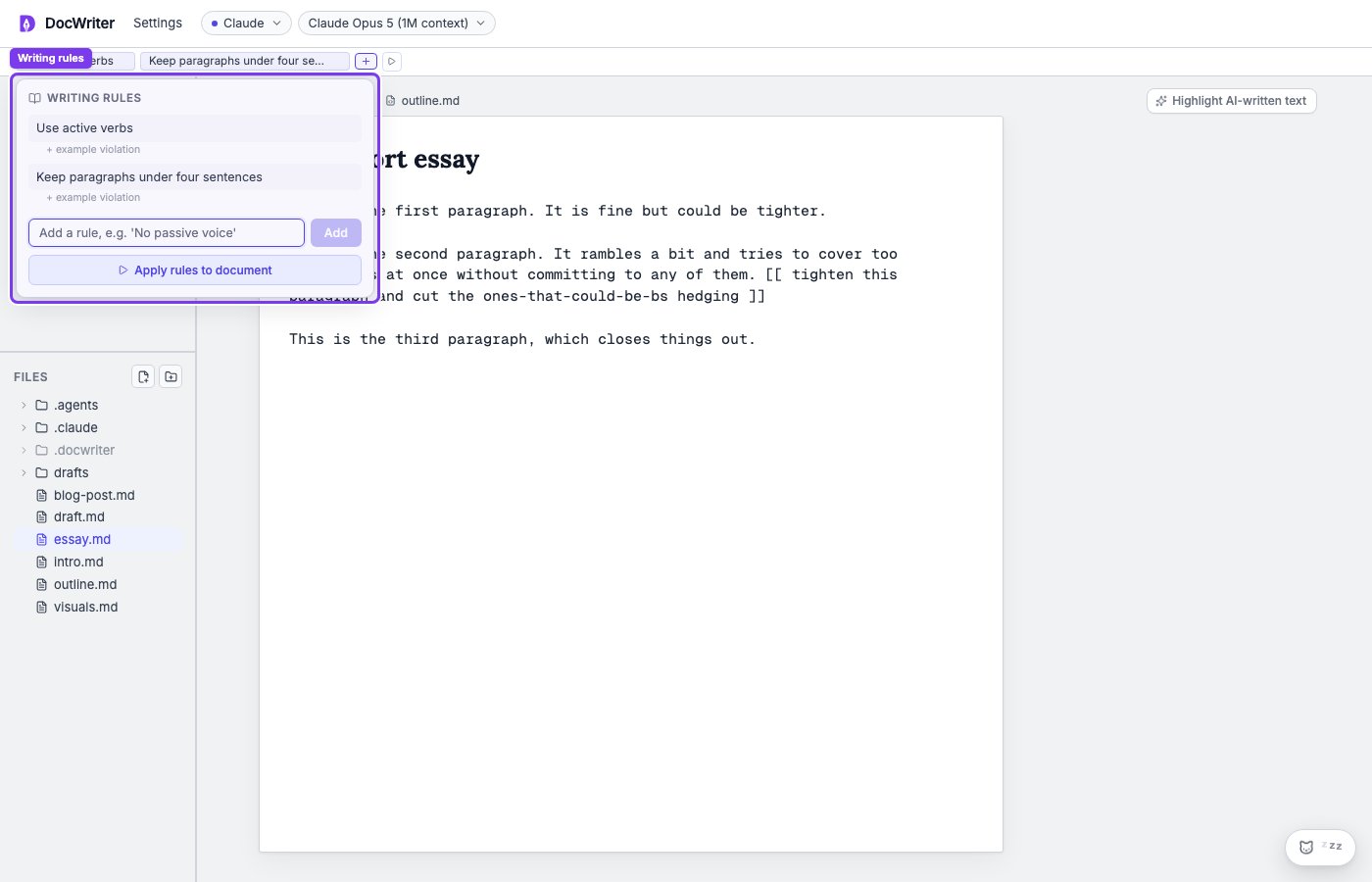
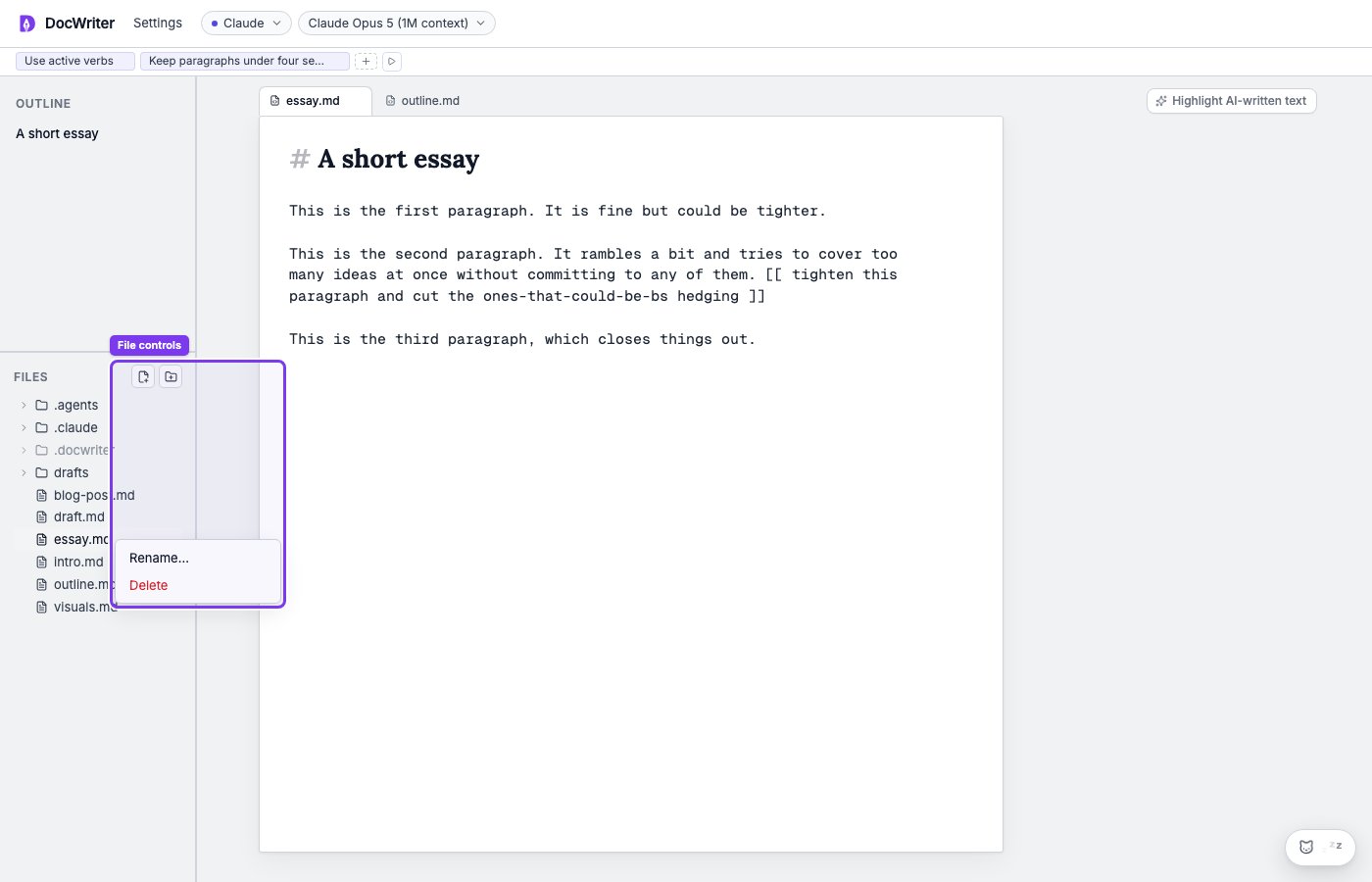
Sidebar
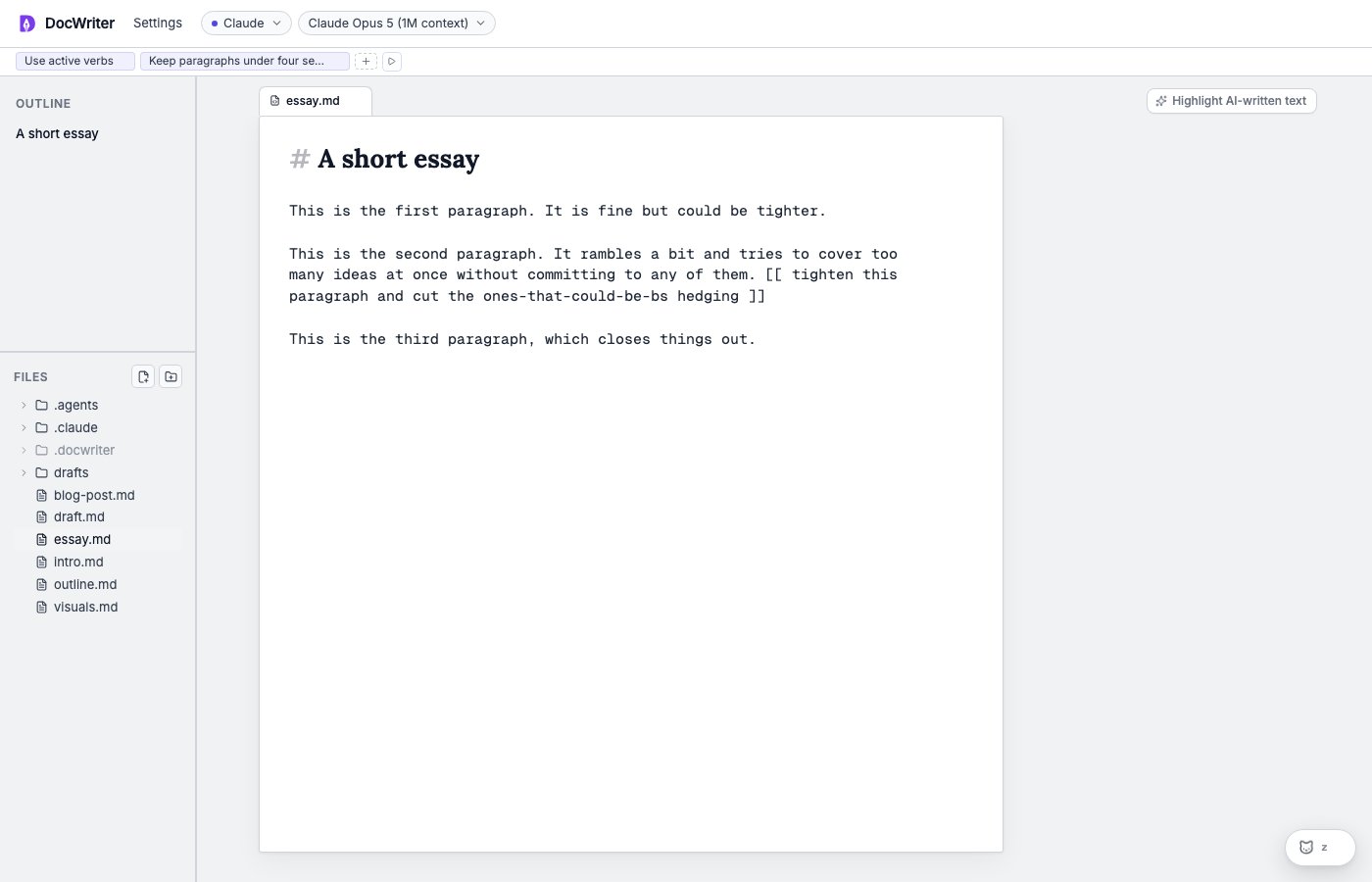
On the left, you will see the heading outline and the file tree. Use the outline to move through a long Markdown file. Use the file tree to open and organize workspace files and folders, including.docwriter.
Drag the sidebar edge to resize it.
Tabs and editor
You open files as tabs above the center editor, so you can move between them without closing your current draft. A tab badge can mark a pending edit, an unresolved agent comment, or a new file created by the agent. You work with plain text in the editor. You will see Markdown styling and media previews without losing the source text.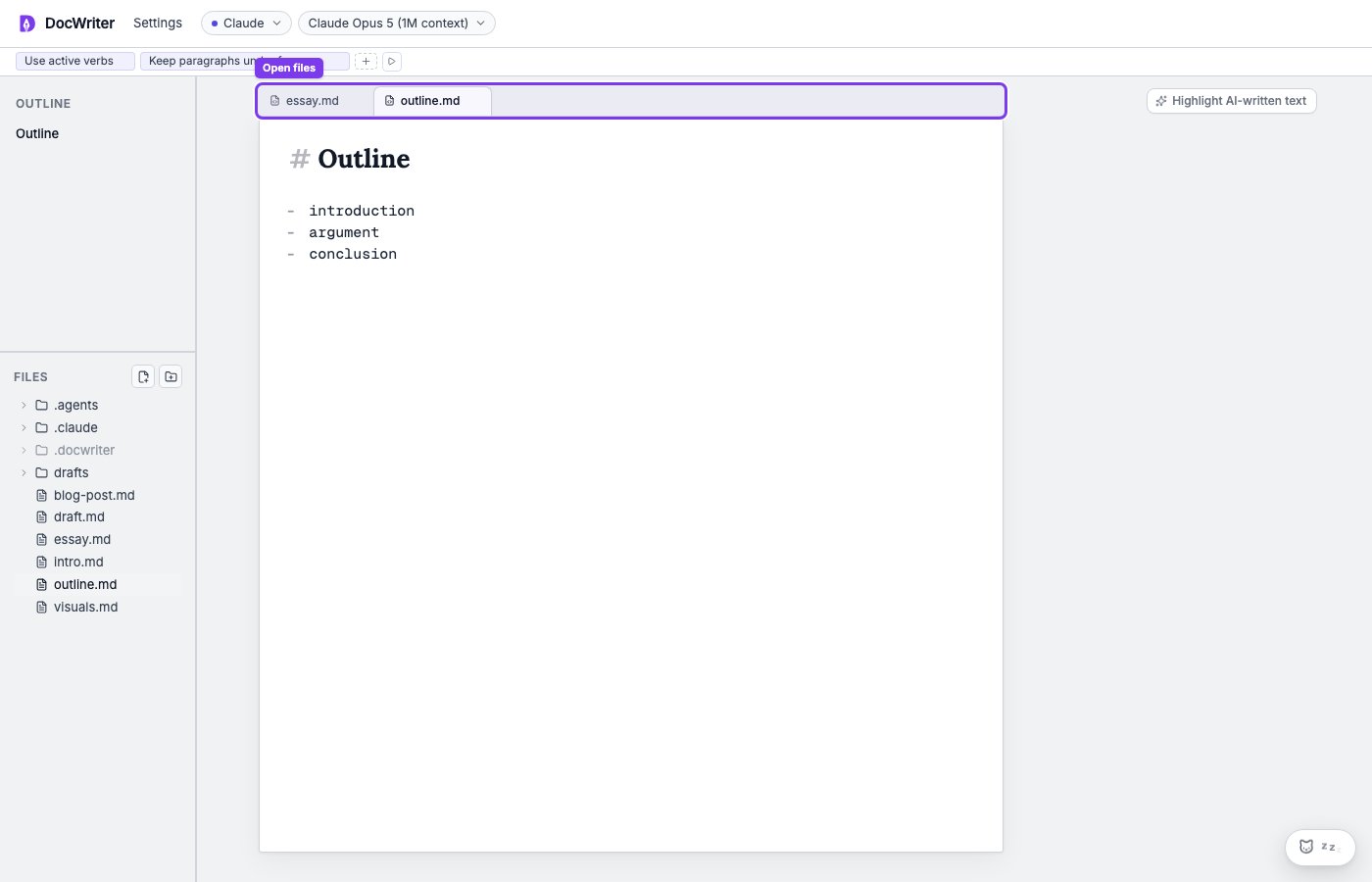
Comment gutter
You will find pending edits and comment threads beside the related text in the comment gutter. You can review each suggestion next to the part of the draft it would change. For an explanation of the review controls, read Review edits.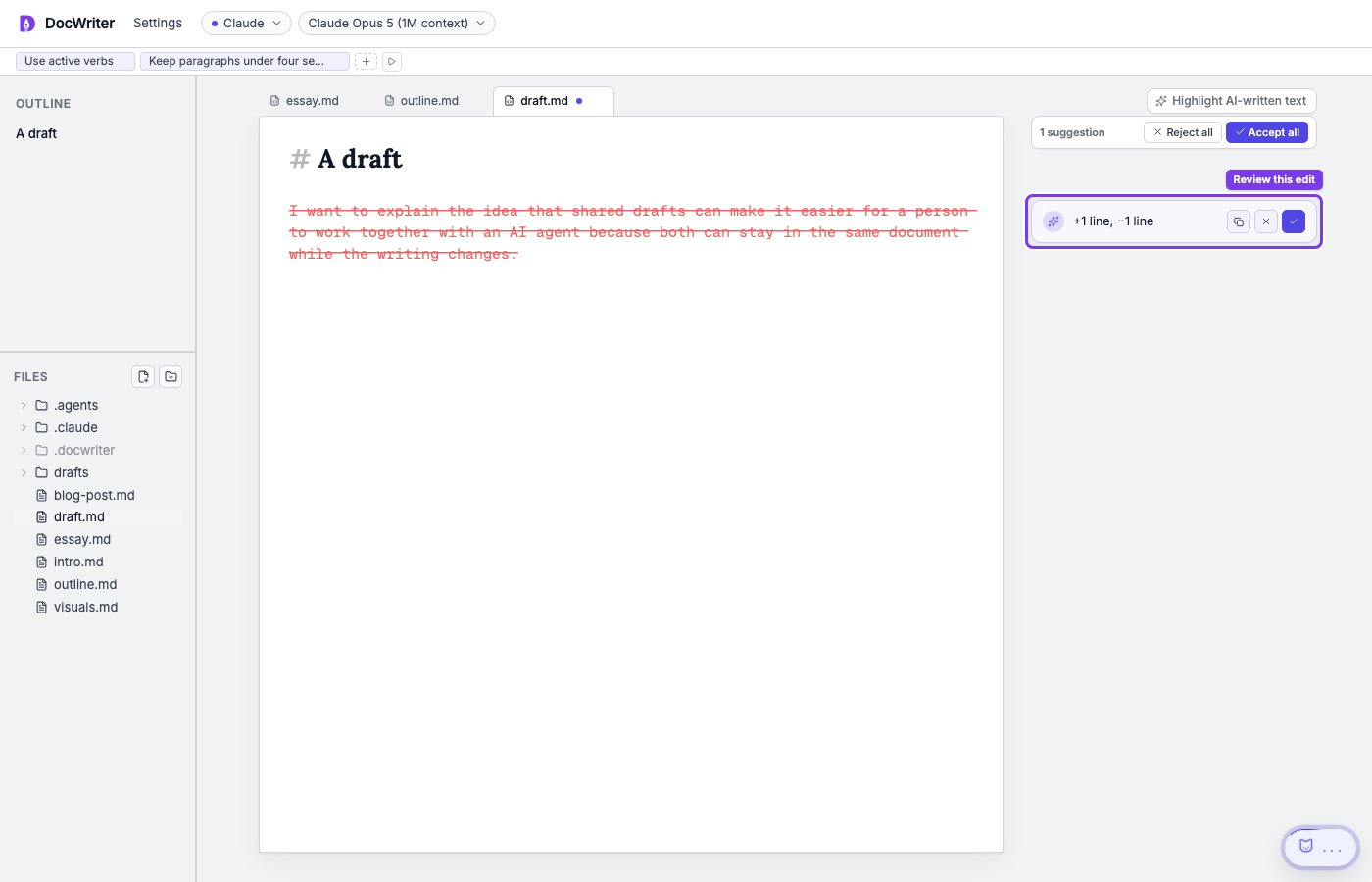
Agent dock
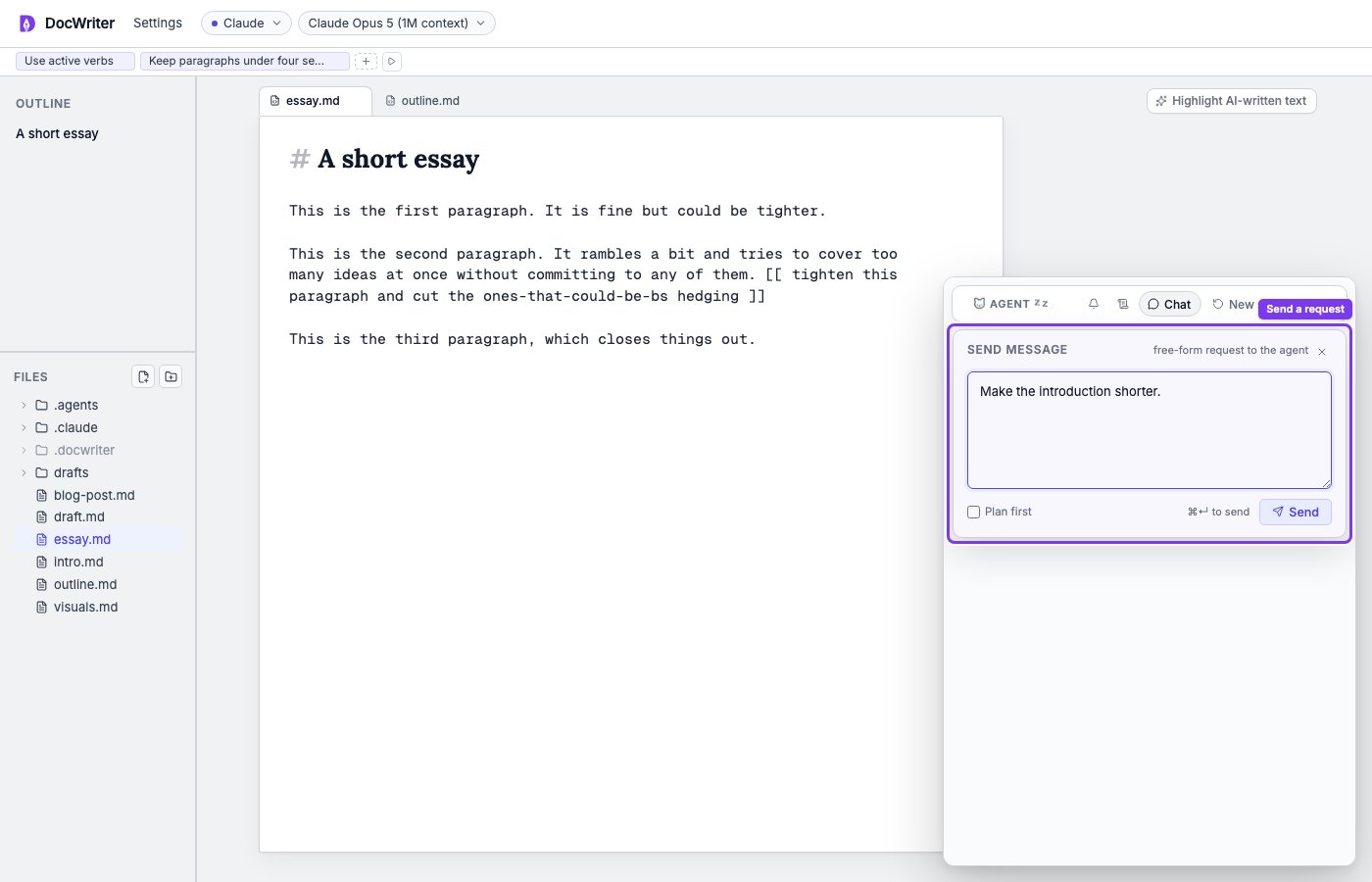
You will see the agent dock as a small pill in the lower right corner. Click the pill to open the dock.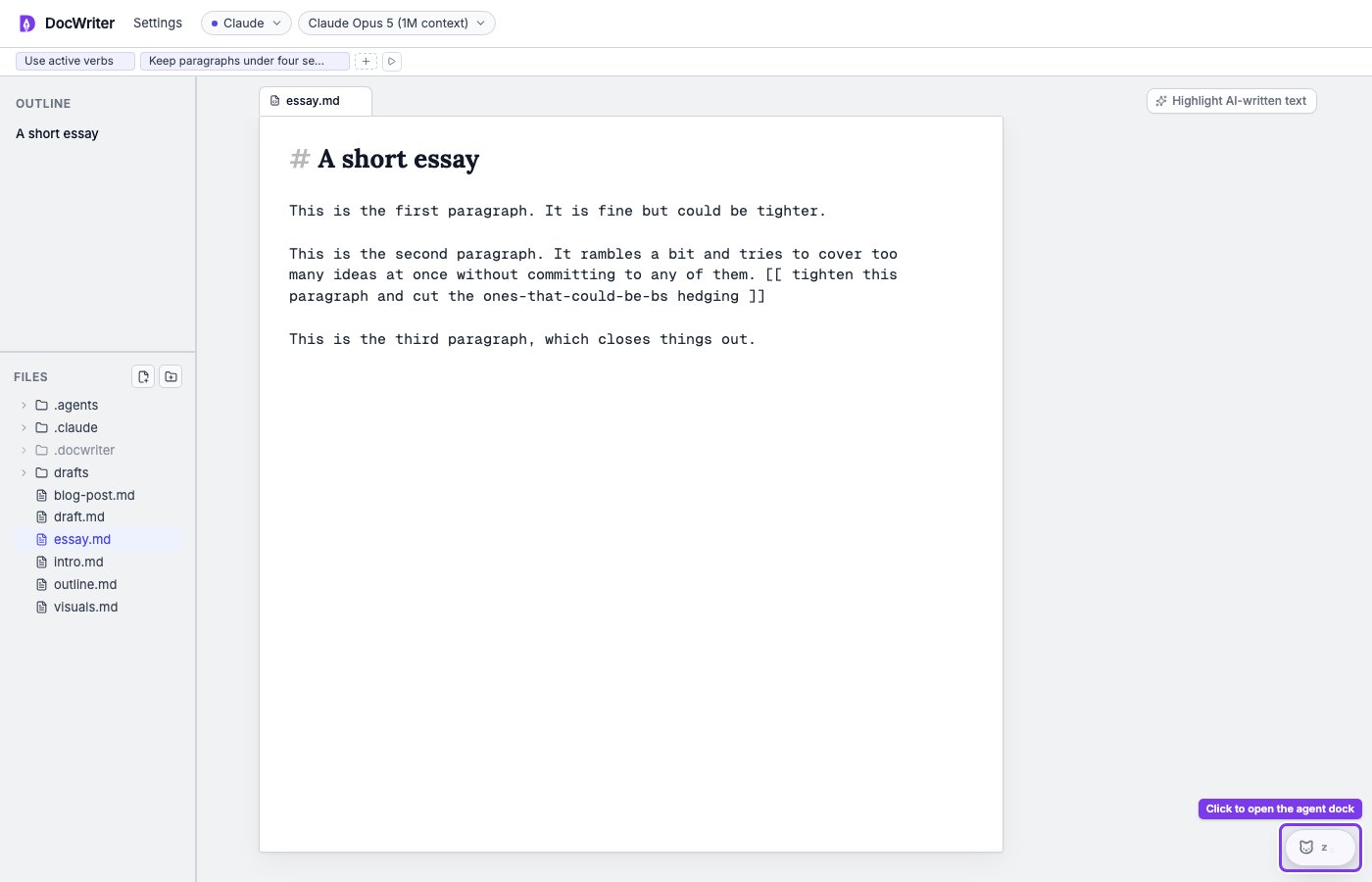
Click the Agent pill in the lower right corner.