Add a rule
Open the rules toolbar above the workspace and choose Add rule. Write one clear instruction that the agent can check against the draft. For example: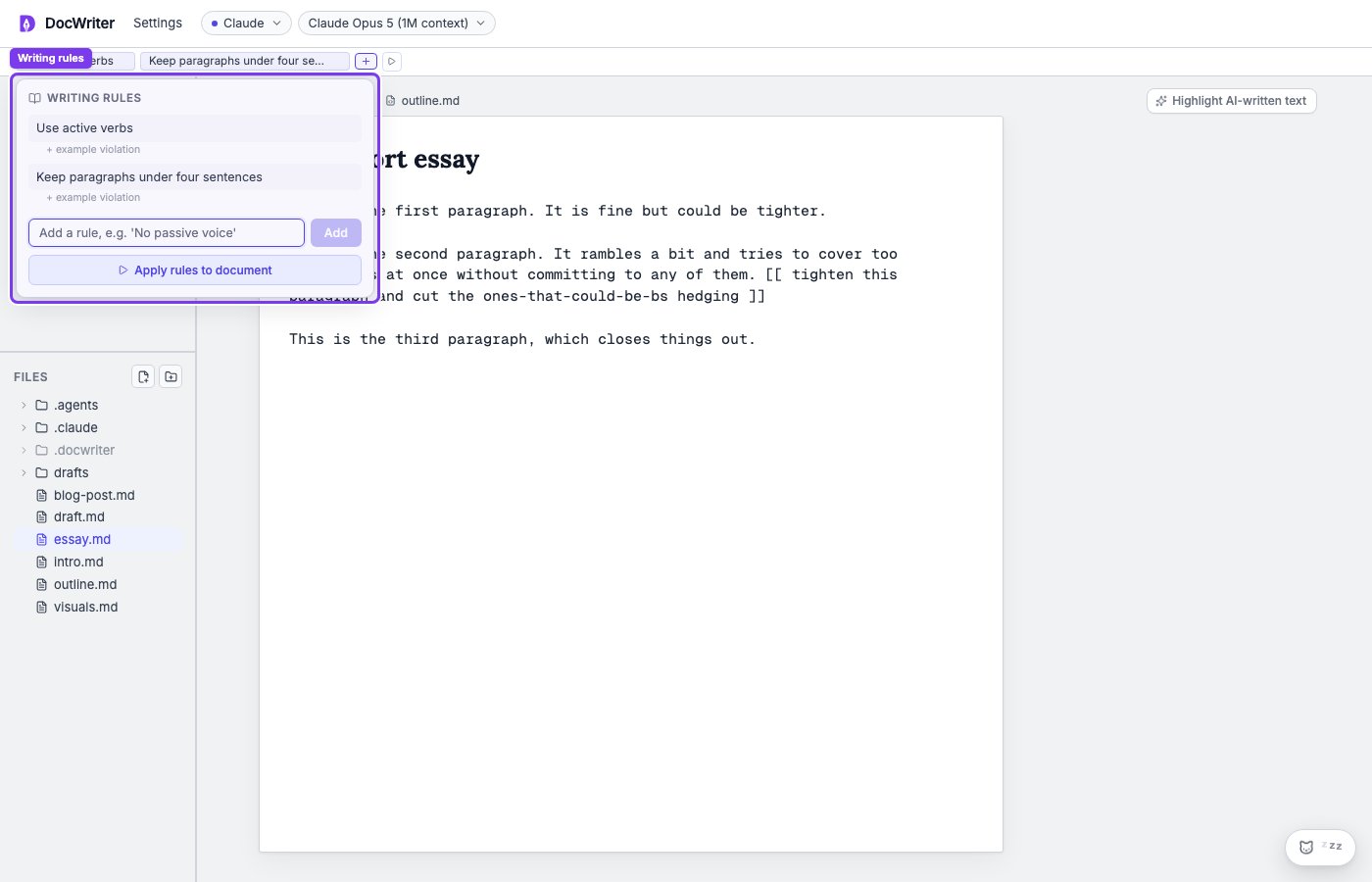
Check a draft against the rules
Choose Apply rules to document when you add or change a rule and want to find existing text that breaks it. Select the active tab, every open tab, or a set of tabs. When you apply rules to selected text, the agent proposes changes wherever the draft breaks a rule. You can review each proposal before accepting it.Review a proposed rule
After the agent notices a repeated preference, you may see a Proposed rule message above the workspace. You can accept it to save the rule, or dismiss it when the instruction should apply only to the current request.Protect exact text
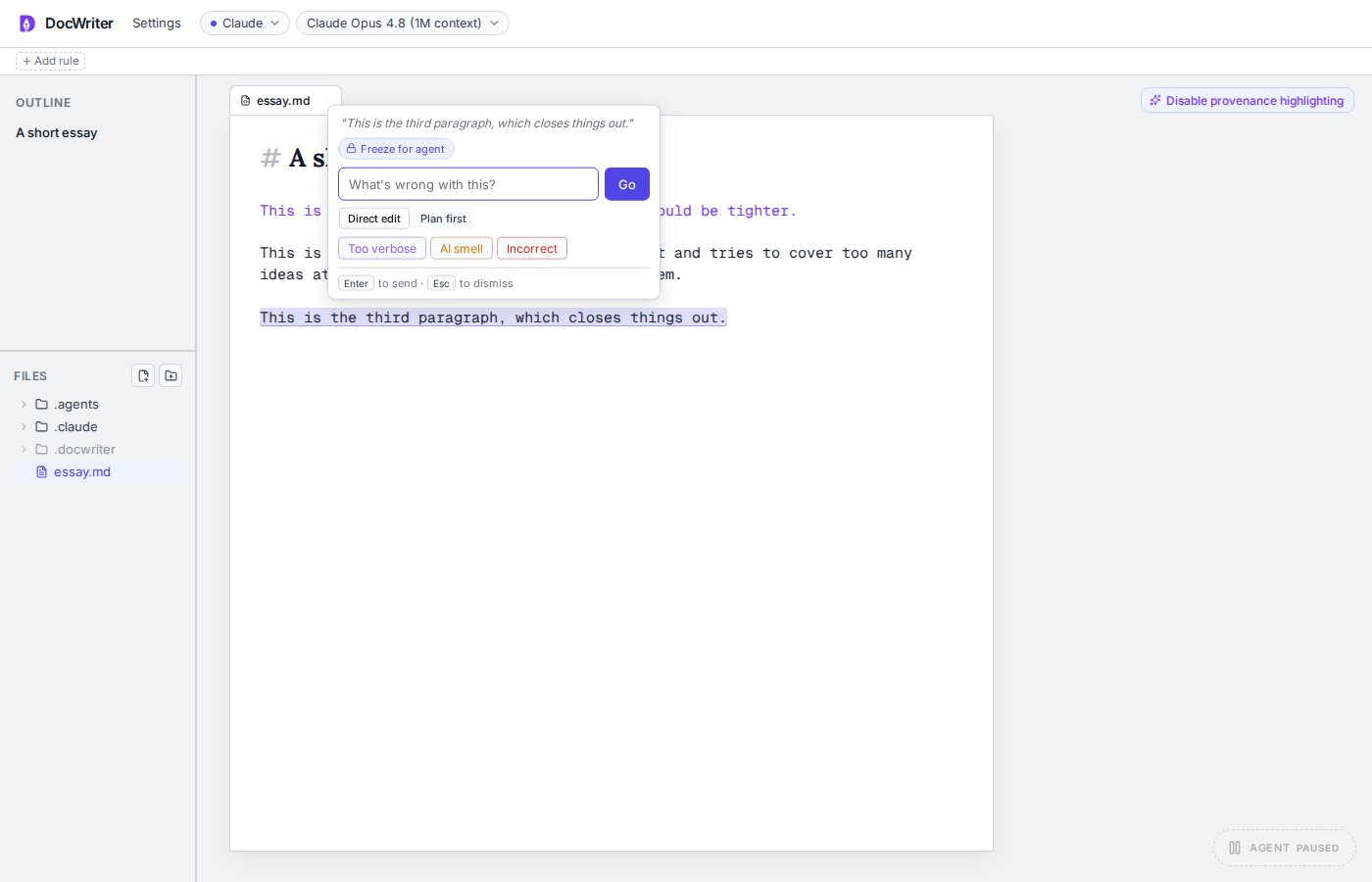
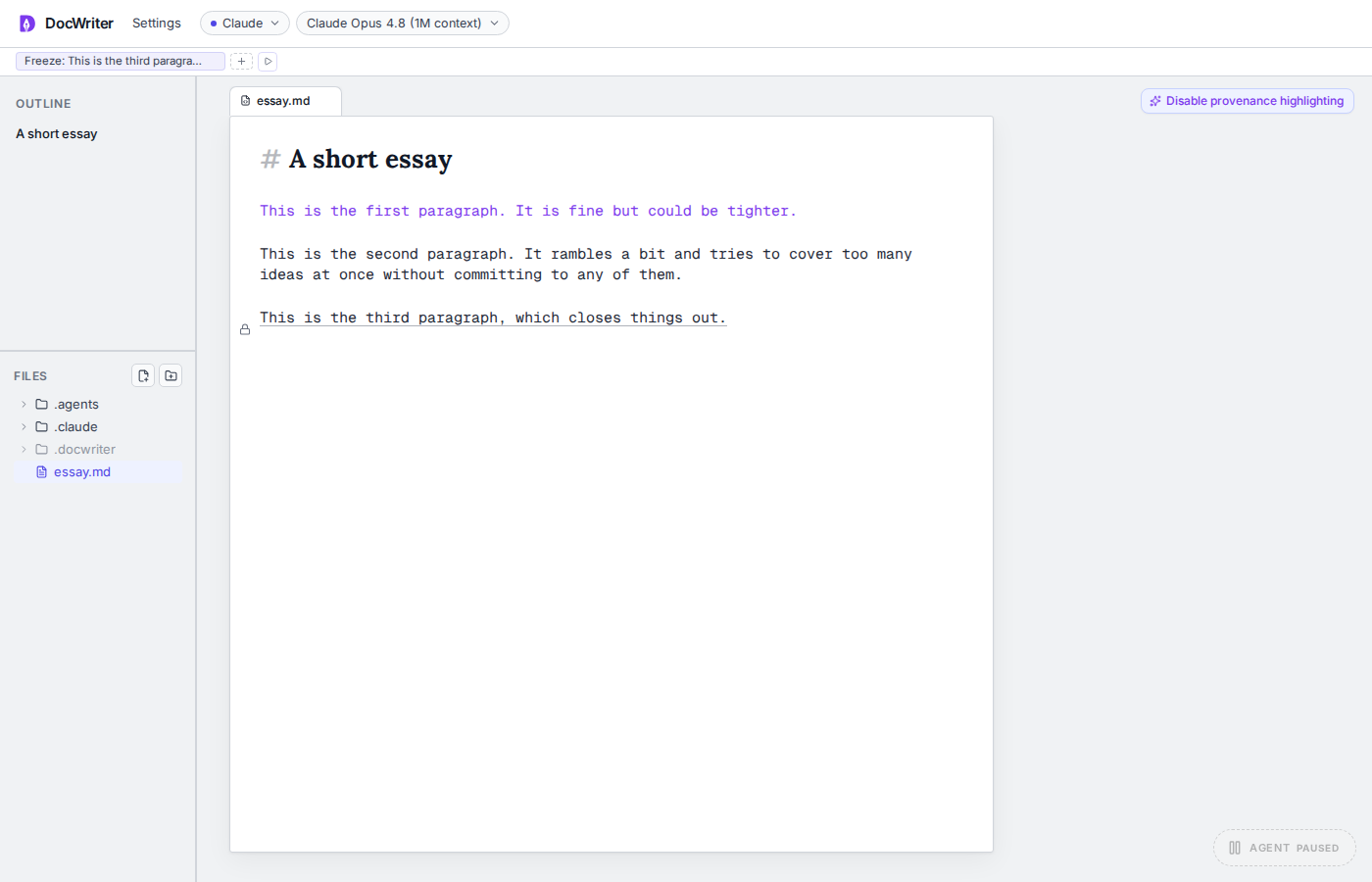
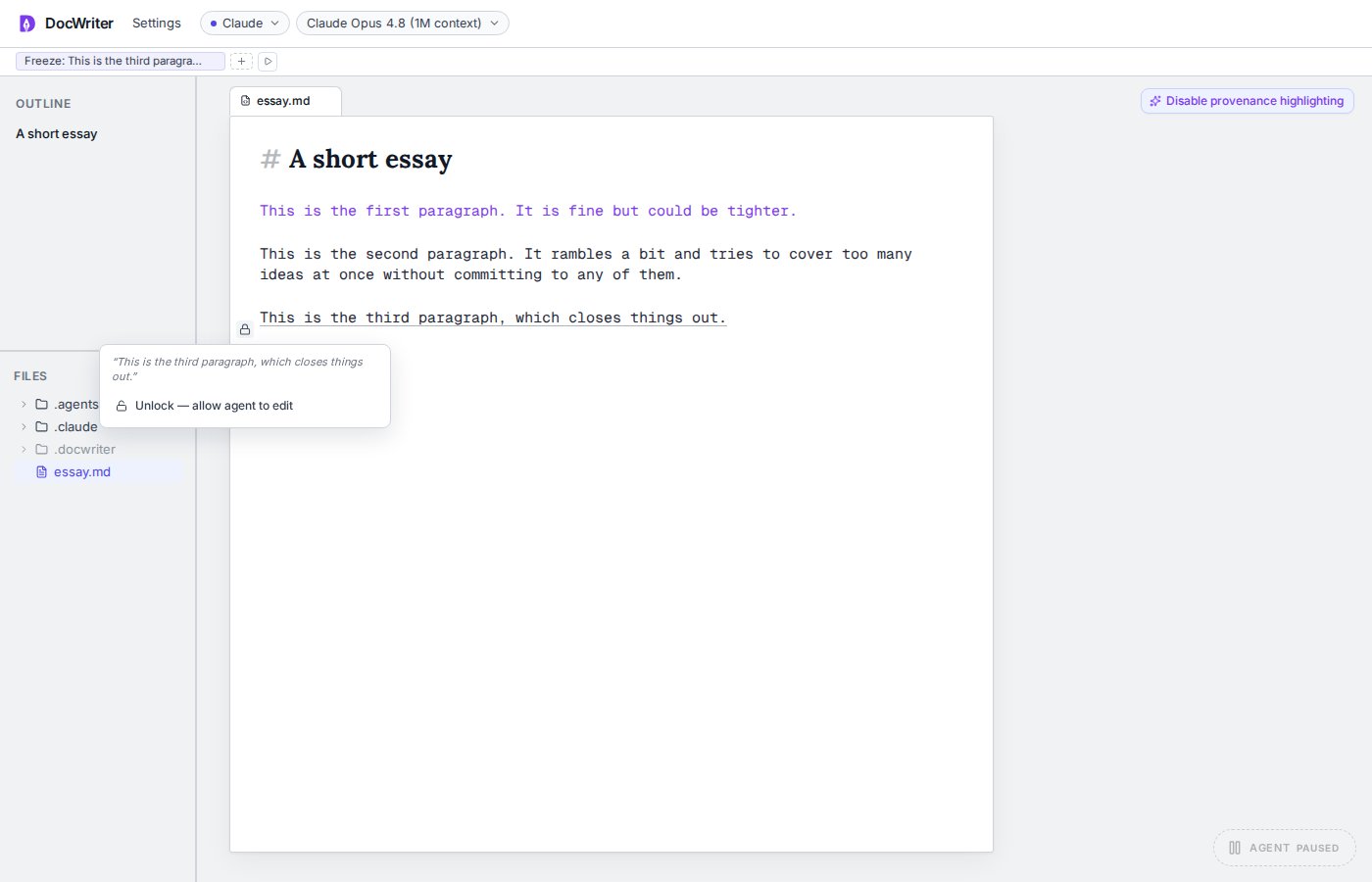
Select a passage and choose Freeze for agent when the words must remain unchanged, such as an approved quotation or required legal text. Your selection becomes a rule for that exact text, and you will see a lock beside the passage. Later agent requests should preserve the frozen words. Click the lock and choose Unlock, allow agent to edit when the text can change again.