

claude, then /login) so agent calls use your Claude.ai / Claude Code subscription. An Anthropic API key is optional and bills API usage instead.
Choose a provider
Click the provider pill in the header and choose one provider where you already have an account or API key. Click the model pill beside it to search the available models or add a custom model identifier.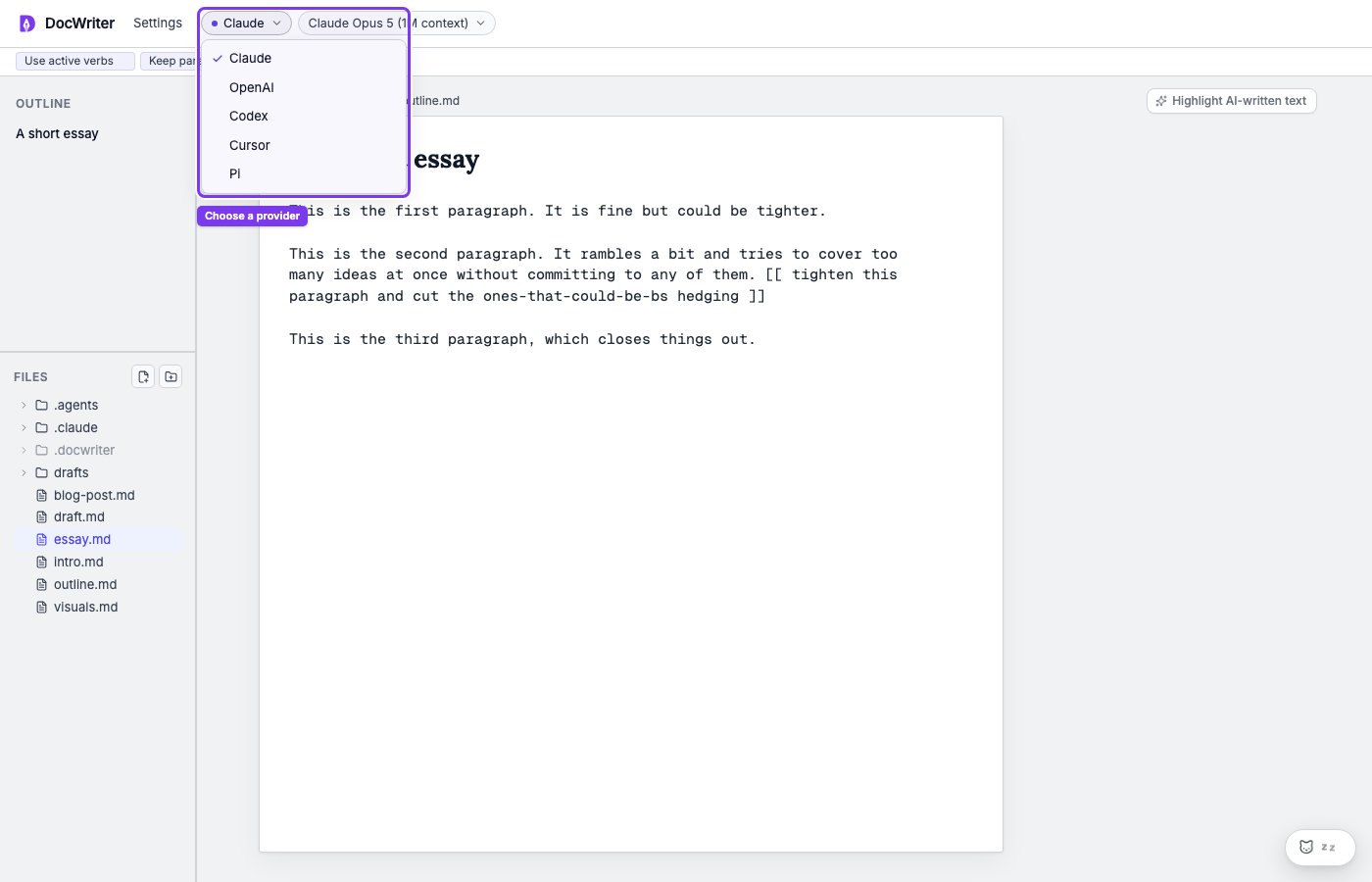
The provider pill is beside Settings in the top-left corner.
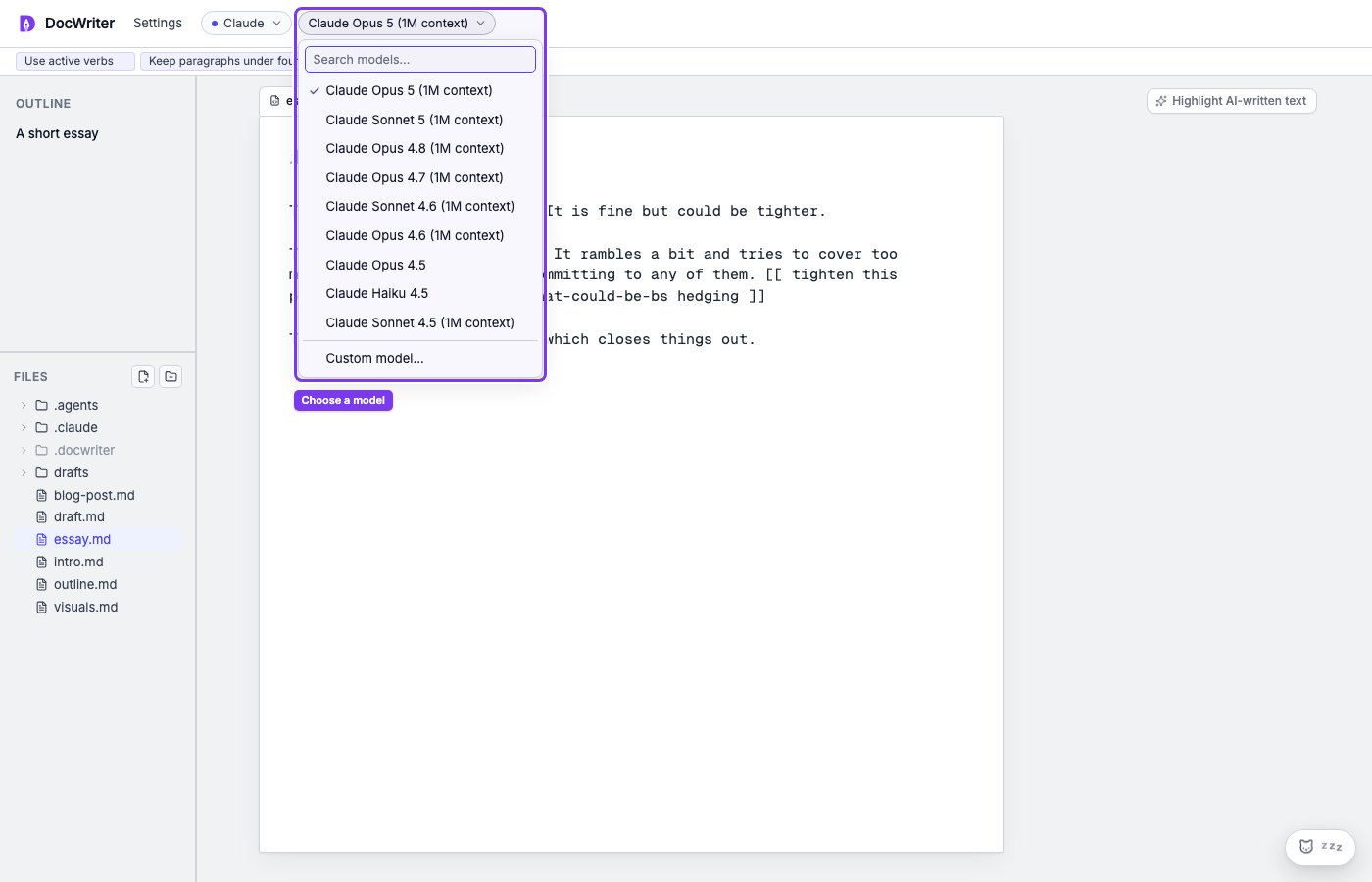
The model pill opens a searchable list beside the provider.
Add credentials
Open Settings, then API keys. You can see whether each provider uses a saved key, an existing login, or no credential. Paste a key in the matching field and choose Save. Choose Remove stored key when you no longer want DocWriter to use the saved key.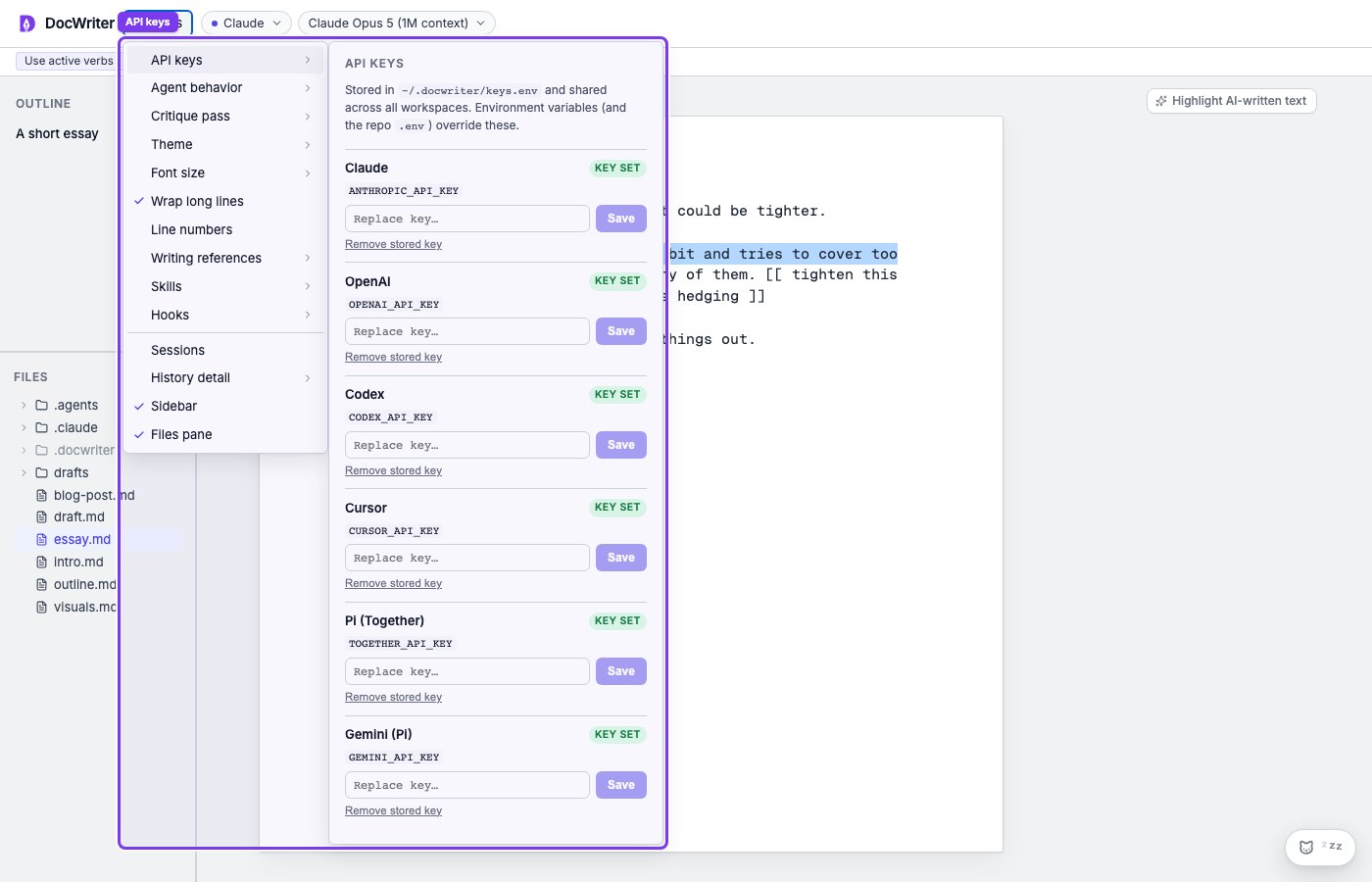
Open Settings, then API keys, to see and change provider credentials.
~/.docwriter/keys.env. A process environment variable or project .env value takes precedence over that file.
Claude
Prefer your Claude Code / Claude.ai subscription when you already use Claude Code on this computer. DocWriter reuses that login. You do not paste anything in the DocWriter UI for this path.- Open a terminal on the same computer that runs DocWriter.
- Run
claudeto open Claude Code. - Type
/login(a Claude Code slash command — not a DocWriter menu) and finish the browser sign-in. - In DocWriter, open Settings, then API keys. Claude should show Using login.
ANTHROPIC_API_KEY works, but agent calls then bill Anthropic API usage instead of your Claude Code subscription.
If the agent toast says authentication failed and mentions /login, it means those terminal steps above — refresh the Claude Code login, then retry in DocWriter. See Provider errors.
To use an API key instead:
ANTHROPIC_API_KEY) when you want to return to Claude Code login.
OpenAI and Codex
OpenAI usesOPENAI_API_KEY. Codex can use an existing Codex login. Choose a model that is available to the account.
Cursor
Cursor uses the signed in Cursor environment. Session recovery differs from provider to provider, so start a new session when a saved provider session can no longer resume.Pi
Pi can use provider keys such asTOGETHER_API_KEY, GEMINI_API_KEY, OPENAI_API_KEY, or ANTHROPIC_API_KEY, depending on the selected model.
Choose a model the account can use
The model list can include models that are not enabled for every account. If a request returns a model error, choose another model from the same provider and send the test request below again. Provider features differ. For example, some providers have their own sessions, skills, or subagents. The main writing and review workflow stays the same across providers.Test the connection
Open a small text file, click Chat in the agent dock, and send: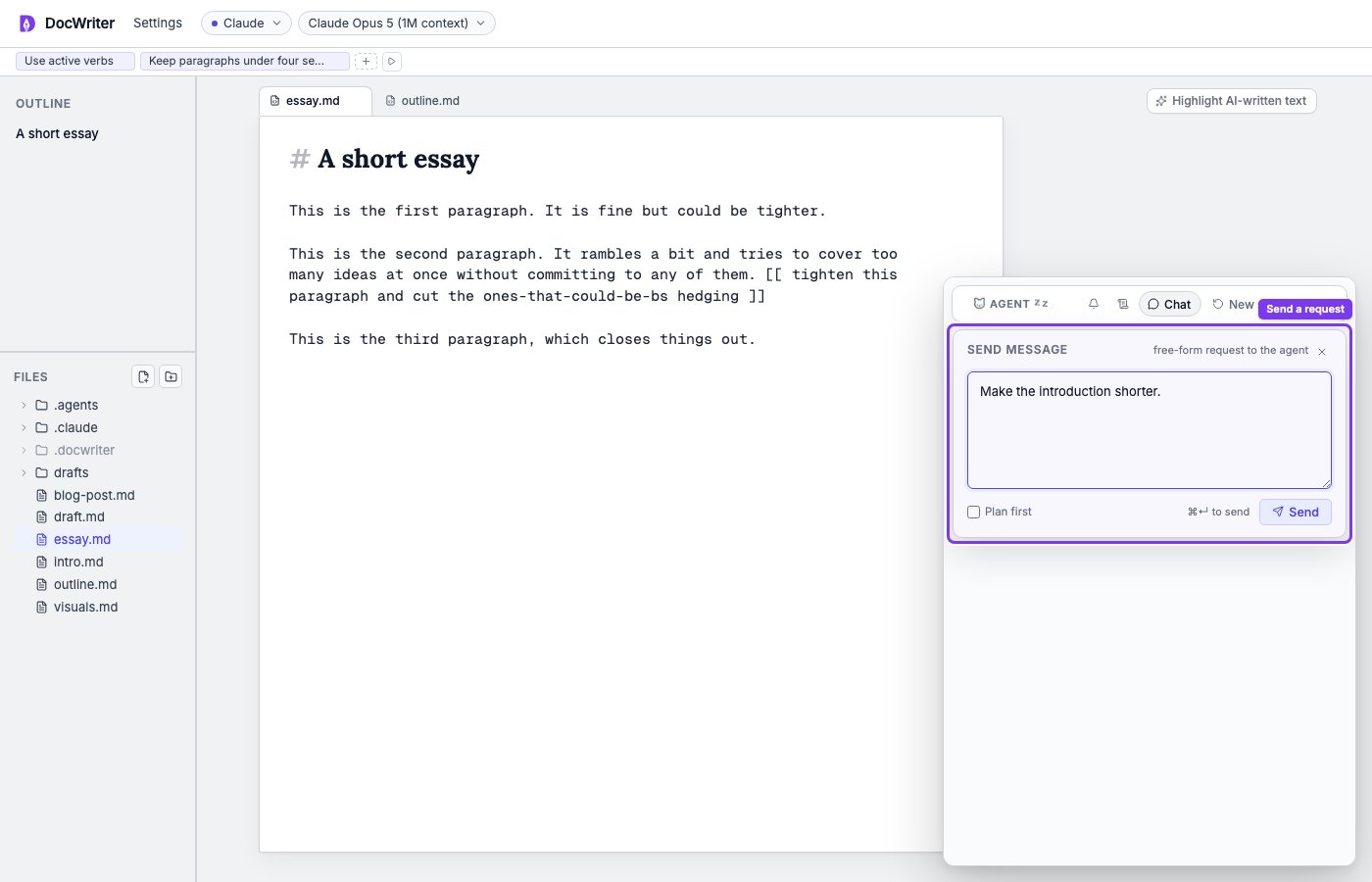
Open Chat from the agent dock and enter the test request.