> ## Documentation Index
> Fetch the complete documentation index at: https://ucberkeley-8d9be701-cursor-clarify-claude-login-docs-8d6e.mintlify.site/llms.txt
> Use this file to discover all available pages before exploring further.
# Images and diagrams
Use images and diagrams when a draft needs a figure, screenshot, or visual result. When you add an image, it stays in your workspace and the editor inserts or previews the source text that points to it. The saved document remains plain text that other Markdown tools can read.
## Paste or drop an image
Paste an image into the editor or drop it onto the document. You will find the saved image under `assets/`, and you will see a Markdown image reference at the cursor. You can then move or edit the reference like any other text in the document.
Supported image types include PNG, JPEG, GIF, WebP, SVG, BMP, and AVIF.
## Paste a URL
When you paste an image URL, the editor inserts a Markdown image. When you paste a URL over selected text, the editor creates a Markdown link. A normal web link stays as text and receives a preview card when the site provides a title, description, or image through OpenGraph metadata.
You also see inline previews for existing Markdown image references and bare image URLs on their own line.
Remote link previews cause the local DocWriter server to request metadata from the destination site.
## Use images with the agent
Paste or drag an image into **Chat** to attach it to the next request. Use an attachment when the request depends on details that are visible in the image. The agent can also read image files already stored in the workspace, which is useful when you need a caption, a figure description, or text copied from an image.
## Preview SVG
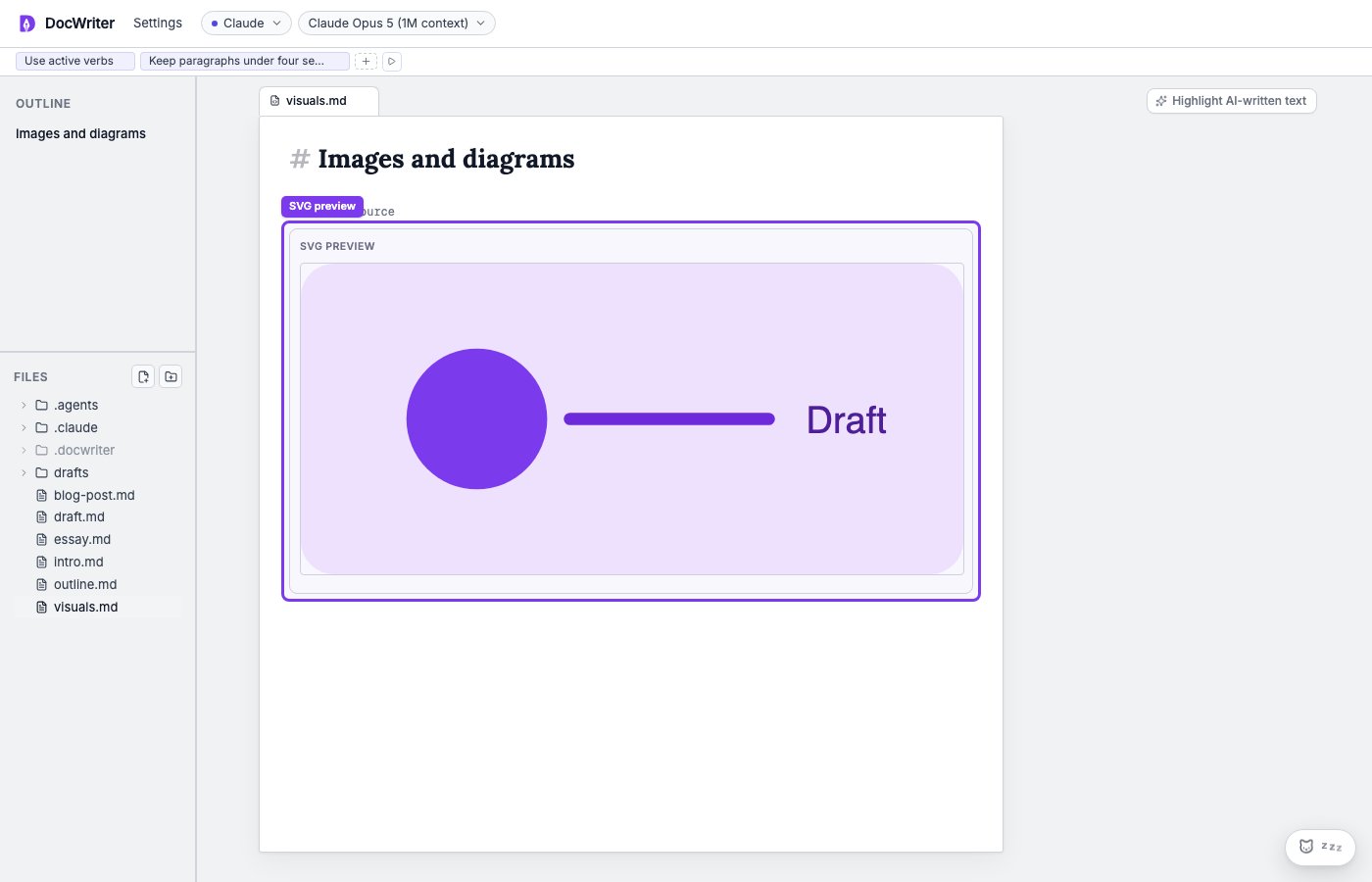
You will see an inline preview for a raw SVG block, so you can check the drawing while keeping its source in the document. You can reveal the source when you need to edit the SVG directly.
 ## Run D3
Use a fenced `d3` code block when you want an interactive diagram generated from code:
````md theme={null}
```d3
const svg = d3.select(container).append("svg");
svg.append("circle").attr("cx", 80).attr("cy", 80).attr("r", 30);
```
````
DocWriter runs D3 in an isolated iframe. The iframe loads D3 from the public D3 CDN, so the preview needs network access.
## Mermaid
To preview Mermaid diagrams, use the Mermaid hook template to turn a Mermaid file into SVG. You can then preview the generated image or embed it in the document.
## Run D3
Use a fenced `d3` code block when you want an interactive diagram generated from code:
````md theme={null}
```d3
const svg = d3.select(container).append("svg");
svg.append("circle").attr("cx", 80).attr("cy", 80).attr("r", 30);
```
````
DocWriter runs D3 in an isolated iframe. The iframe loads D3 from the public D3 CDN, so the preview needs network access.
## Mermaid
To preview Mermaid diagrams, use the Mermaid hook template to turn a Mermaid file into SVG. You can then preview the generated image or embed it in the document.